n8n is a workflow automation tool which you can use to build your automations and connect various applications. It has a node based editor, which makes it ideal for both technical and non-technical professionals. It also supports the flexibility writing custom code. It has first hand support for AI agents.
Quick Fact: The name n8n is derived from “nodemation”, a fusion of node and automation, the “8” representing the eight letters between the first and last “n.”
There are other platforms like n8n such as Make, Zapier and Monday but these emphasize simplicity, n8n goes further. n8n is also open source so you have the ability to self host, which is how I personally use it.
The Problem Statement
My current workplace was facing the problem of task assignment, followups and daily updates. People were not assigned tasks on time which lead to low productivity. Also, the manager ↗wanted a flow for getting the daily updates from each people. Instead of hiring a product manager, He suggested I do some automation.
Every project at Orangewood Labs↗ has a set of documents associated to it. The manger maintains this document in Google Sheets. I know it’s not ideal but it works for him at least. He has individual sheets inside that document, each sheet contains some information related to the project such as Customer Info, Requirements, BOMs, Task Breakdown, Gantt Charts etc.
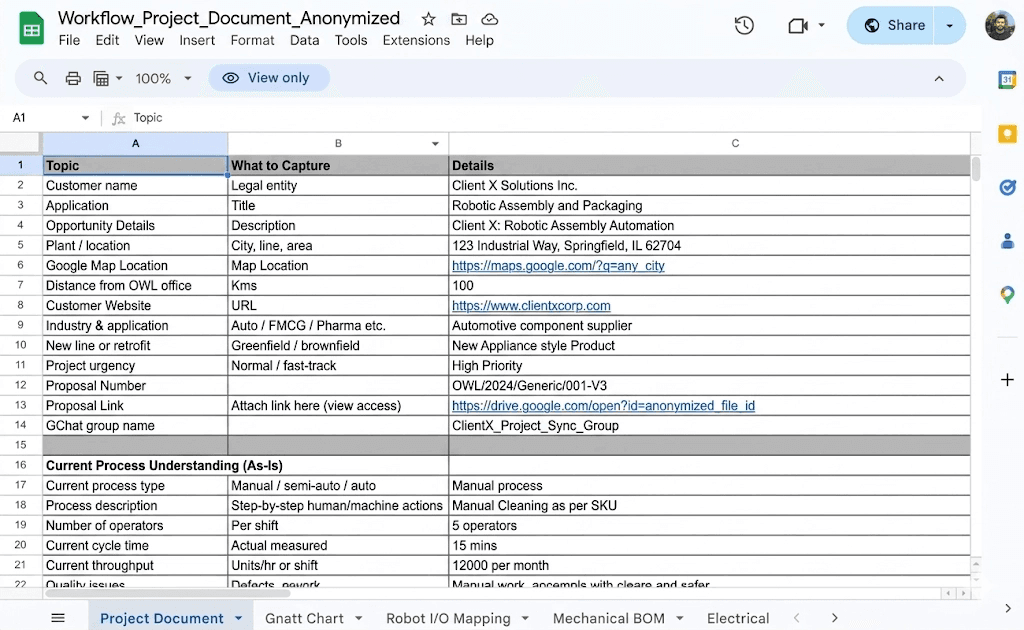
I used this as sort of a database or source of truth in the n8n workflows.
Infrastructure
I am using a self hosted instance of n8n for this. All the automations are run on this n8n instance. For database and storage we are using Google Sheets, as all the documents are already maintained in Sheets and its super easy to integrate into n8n.
For LLMs, I am using mainly GPT-5.2. For the most complex tasks, I use GPT-5.4 with the thinking set to high. When I need speed, I am using gpt-oss-120b from Groq↗. I find this model not getting the credit it deservers, its very fast and quite capable.
Workflows
This complete automation is divided into smaller workflows, each workflow focusing on a single big feature or task. Instead of having a single super large and complex workflow, I tried to apply the Unix philosophy here - your app should do one thing and one thing well.
The automation is divided into these workflows:
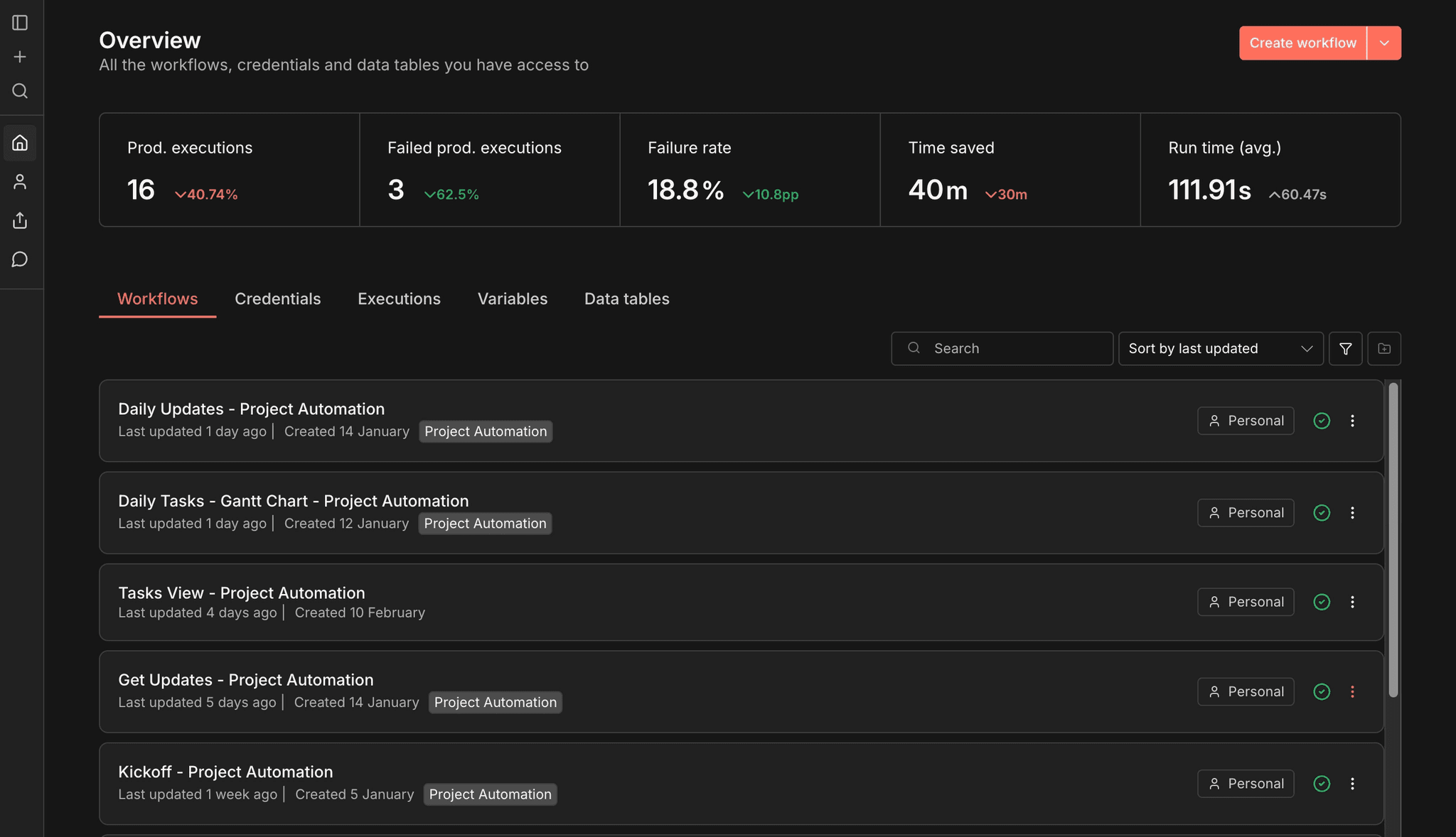
- Daily Tasks Workflow - This workflow triggers at 8.00AM everyday and this is responsible for announcing daily tasks to each employee based on the current active projects and deadlines.
- Daily Updates Workflow - This workflow triggers at 6.30 PM everyday and sends a form to each employee on email asking them questions based on their tasks assigned.
- Project Kickoff Workflow - This workflow is responsible for onboarding and starting a new project with the team. Whenever we take on a new project, the team lead triggers this workflow via a form. This is more of a orchestration workflow that starts other workflows when we take on a new project.
- Task View Workflow - This was a specific requirement from the manager, He wanted something that gives him clarity on what each employee was doing on a particular day.
Let’s now dive into each of workflows and how they work.
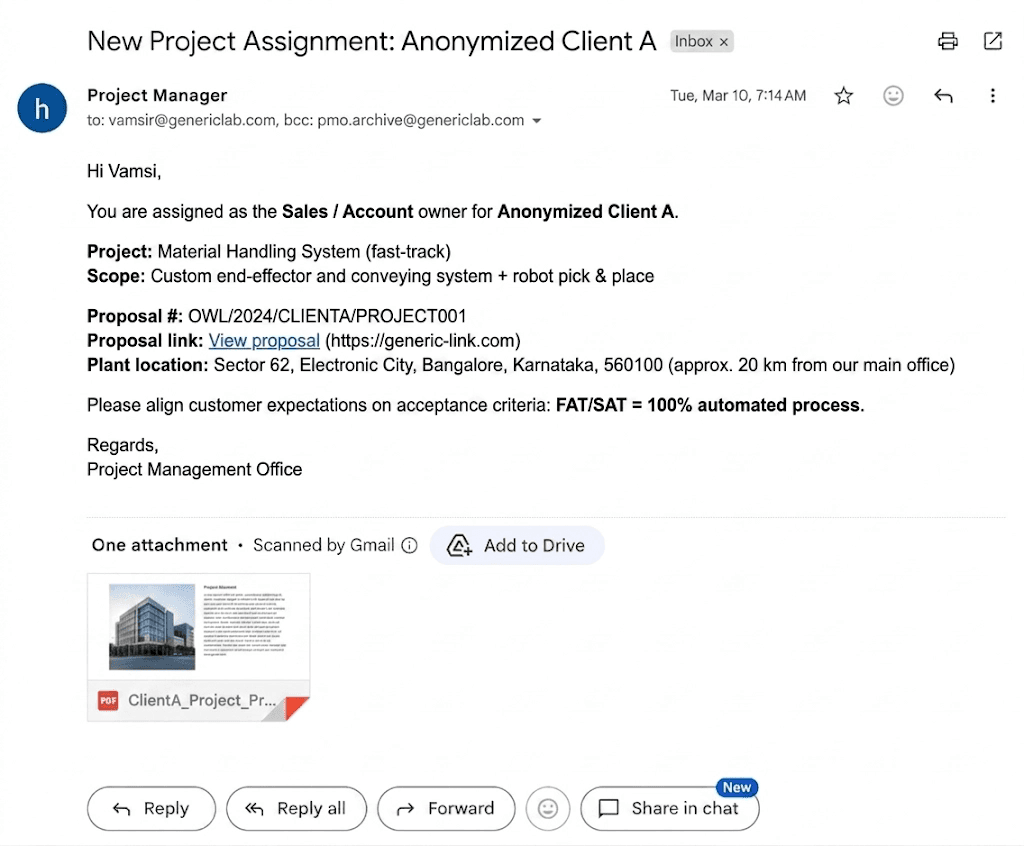
Project Kickoff Workflow
This is the entry point for our automation. For every project at the company, Manager has a Google Sheet document with all the documentation. Each document has several sheets. There’s a main sheet with the project metadata such as customer information, processes, team members and their roles etc.
There is a separate sheet for tasks identified after the project discussion meeting with team. This is the Gnatt Chart.
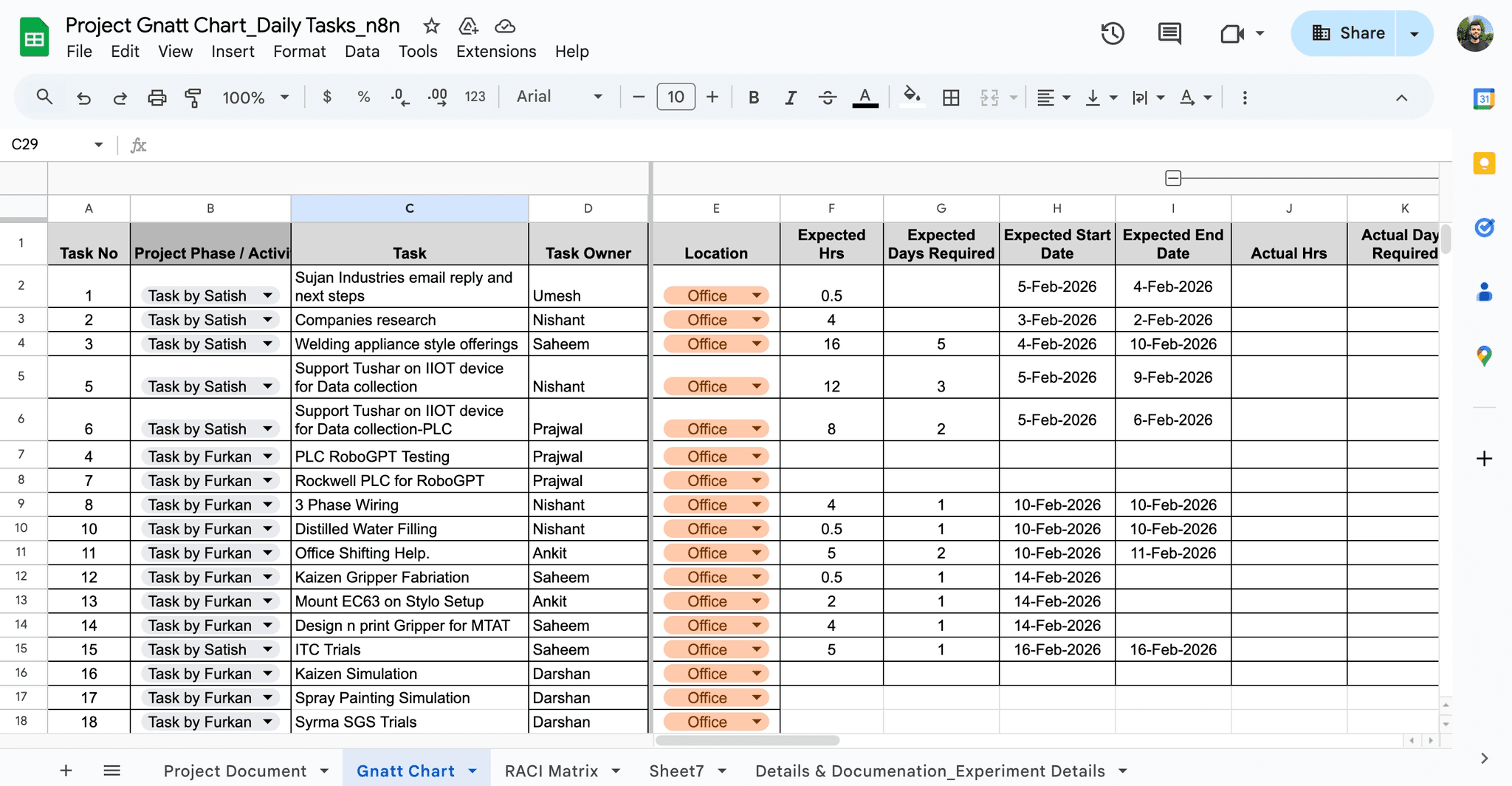
Okay, now let’s understand the actual automation.
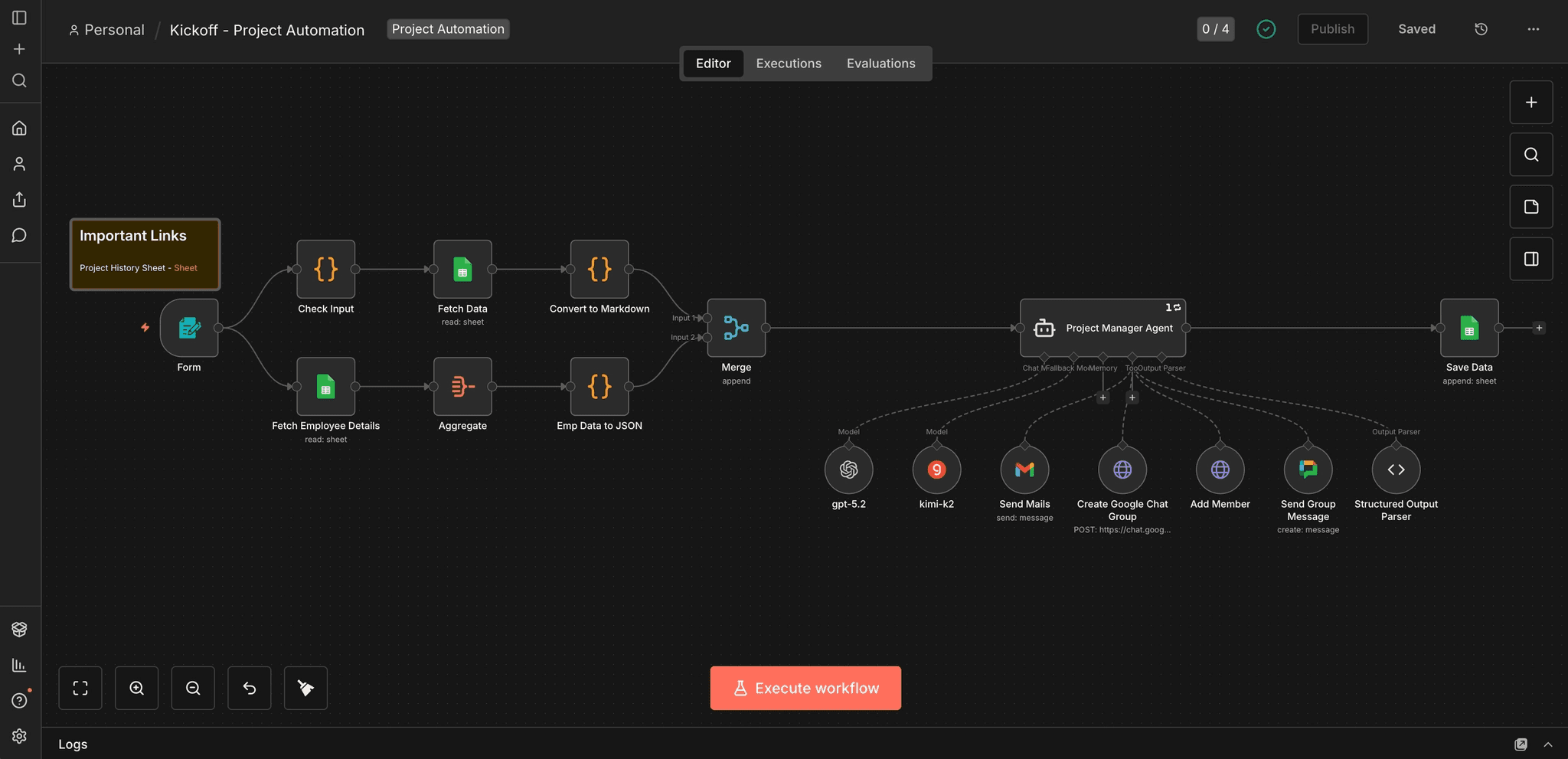
This workflow is triggered via a Form, this form has one input only, “sheet link” - The above Google Sheets project document.
After the manager submits the form with the link to the project sheet, it goes over some basic checks like verifying if the link is a google sheets link, after that the first sheet is fetched from the document which has the project metadata, while in the other branch employee details are fetched from a separate Google Sheet docs which has employee details such as emails, names, designations and phone numbers.
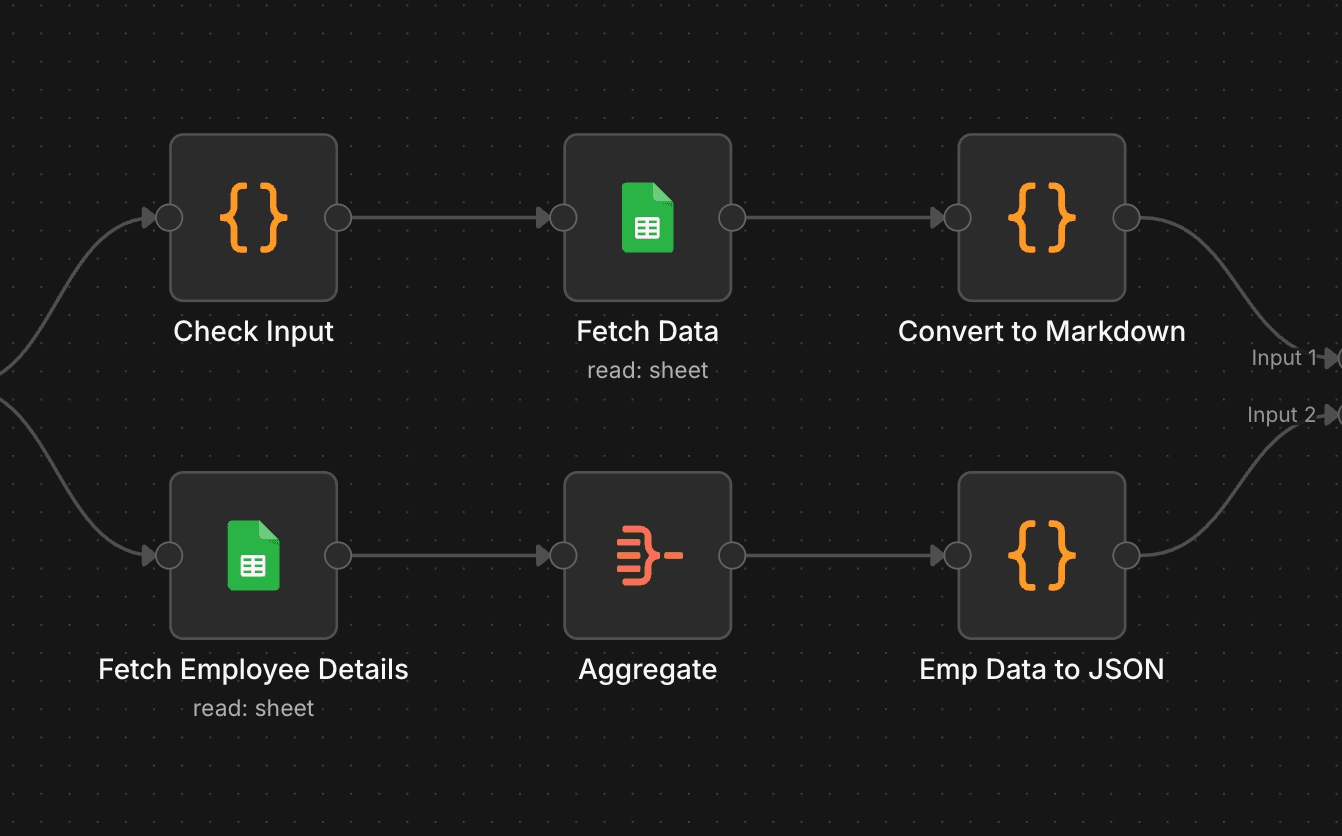
All this data is then fed straight into a AI agent.
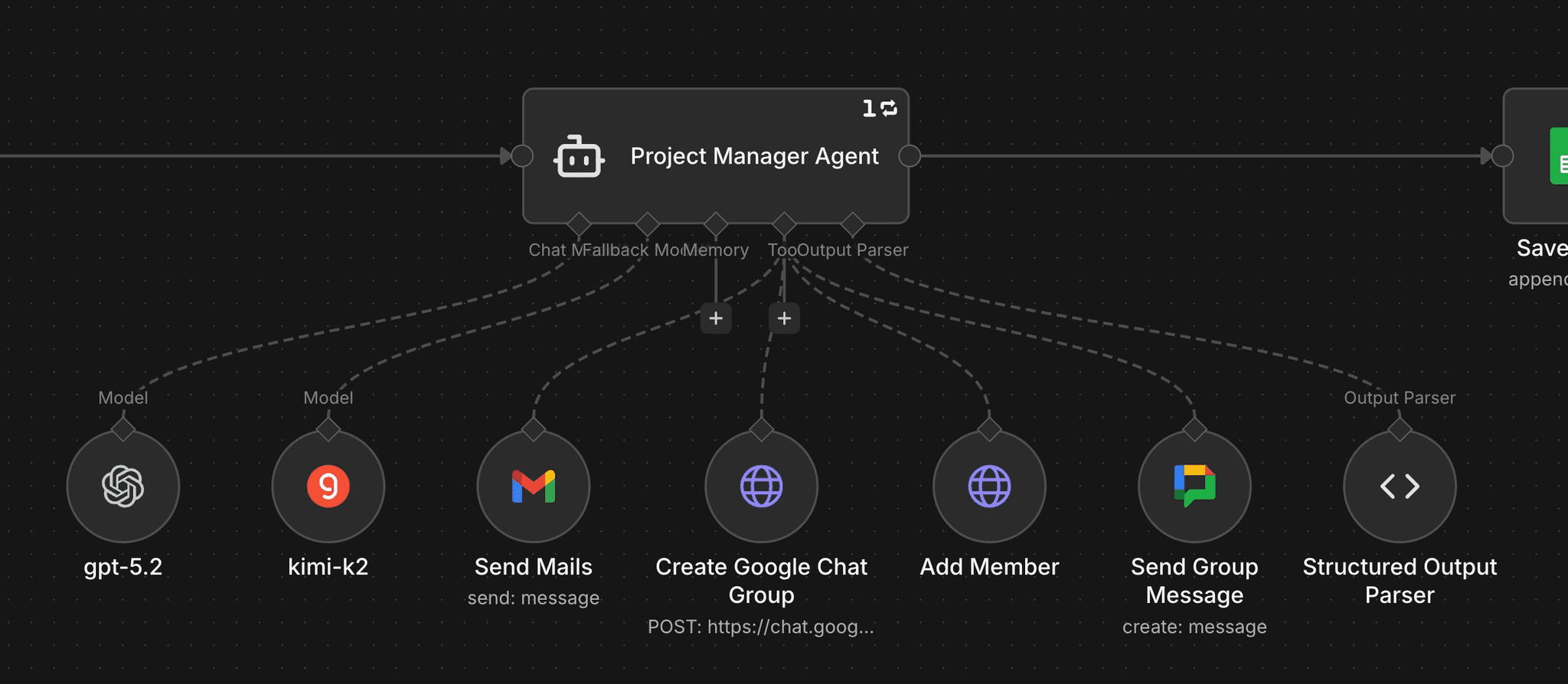
This AI agent is the brain of this workflow. The AI agent does this:
- Sending emails to each team member announcing new project.
- Creating Google Chat groups and adding all the members identified for the project in that group.
- Sending messages in that group with links to Project documentation.
I am using GPT-5.2 as the LLM behind this agent. It gets the job done here, incase of some failure, I have setup Kimi K2 as the fallback model.
You may notice the “Structured Output Parser” attached to the agent. I am controlling the output given by the agent here.
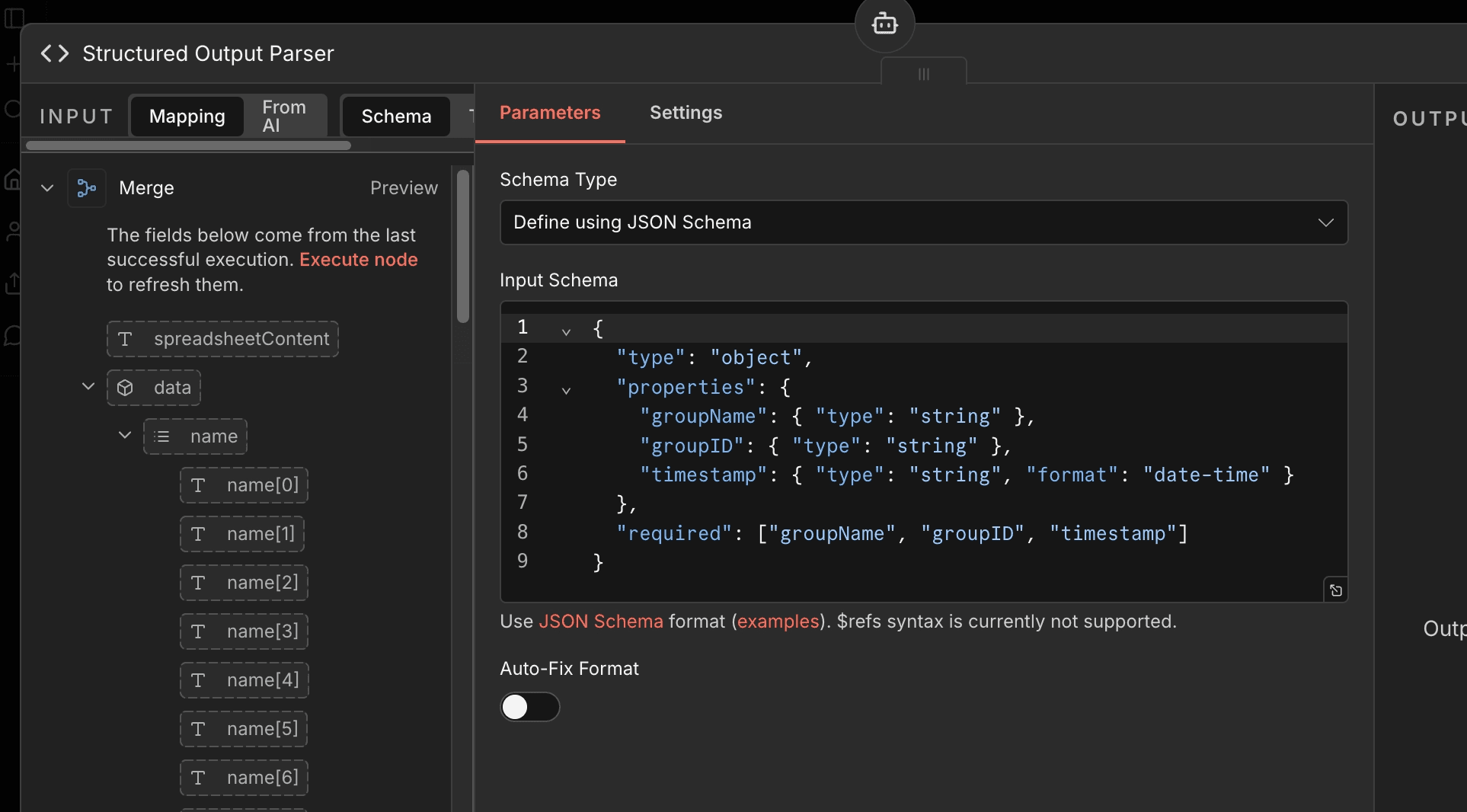
This allows me to save this data to a separate Google Sheet document as a working history of all the active projects. This is used by the other workflows.
This is our first workflow. This only runs once for each project. The purpose of this was to achieve clear communication for the team members. We are creating groups and sending emails to let each person know about the new project that is about to start.
Tasks View Workflow
Manager needed a way to view the tasks of each employee on a timeline like format. He suggested everything to be done in Google Sheets, he is a excel guy.
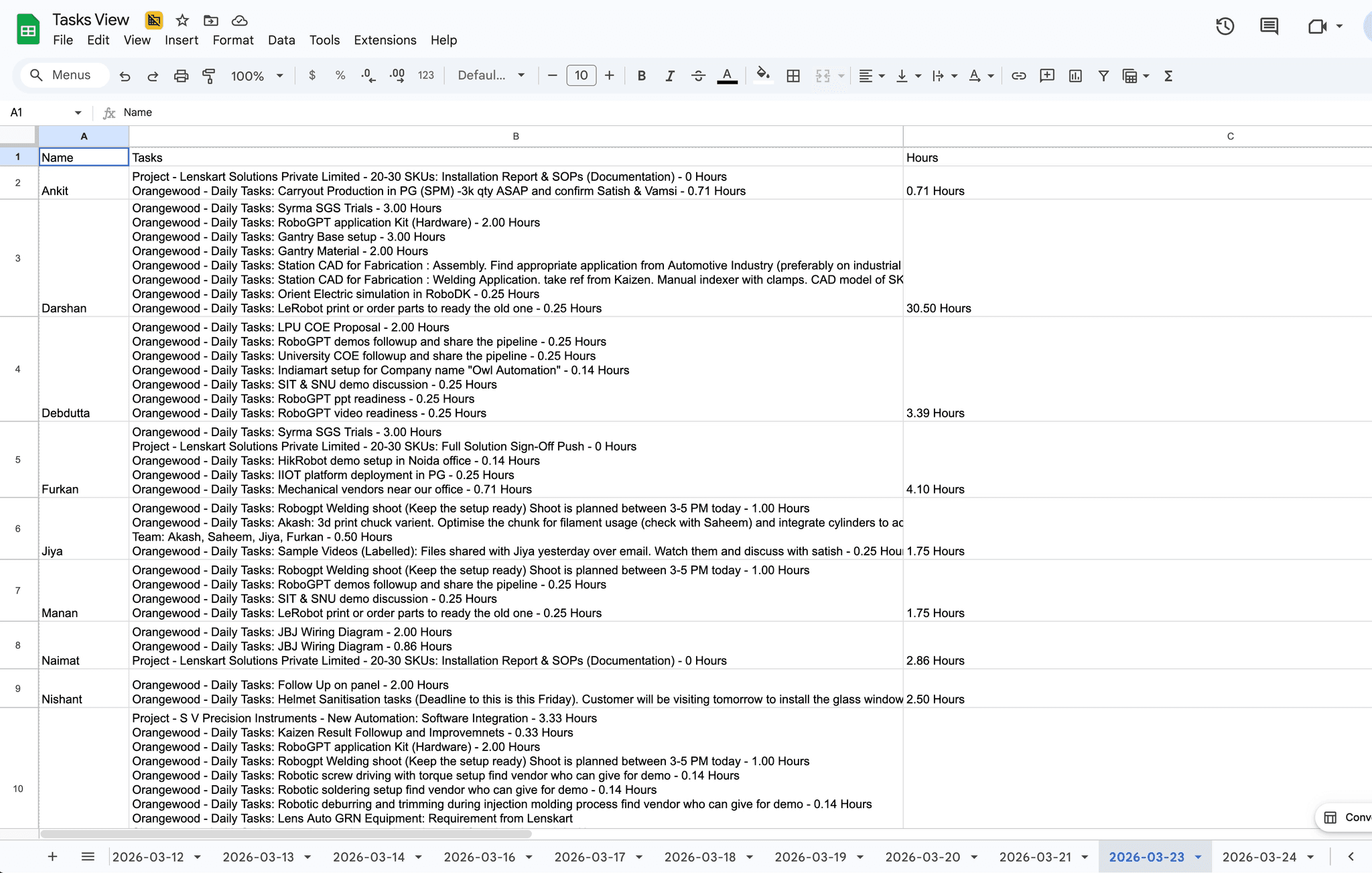
The workflow creates a sheet inside this document for each day. The manager can trigger this whenever he wants, so that he can have a look in the future and plan ahead.
The workflow looks something like this:

It’s triggered by a form which takes input a Date, the date for which the sheet would be created.
It then goes over each of the project’s documents, remember, we were saving this into a separate sheet in the Kickoff Workflow?
After it finds the “Gantt Chart” for each project, the data is sorted and filtered based on the dates and its given to a AI Agent this agent calculates the Hours and Formats the tasks for each employee. Then the output is mapped onto the sheet in the Tasks View document.
Daily Tasks Workflow
This is one of the most crucial workflows for the automation. This workflow notifies each team member what they are supposed to do each day. Employees get emails listing their tasks and timelines, and it also sends a message in the respective project group about each person’s tasks so that the team knows what each person is doing today. Employees get emails like this:
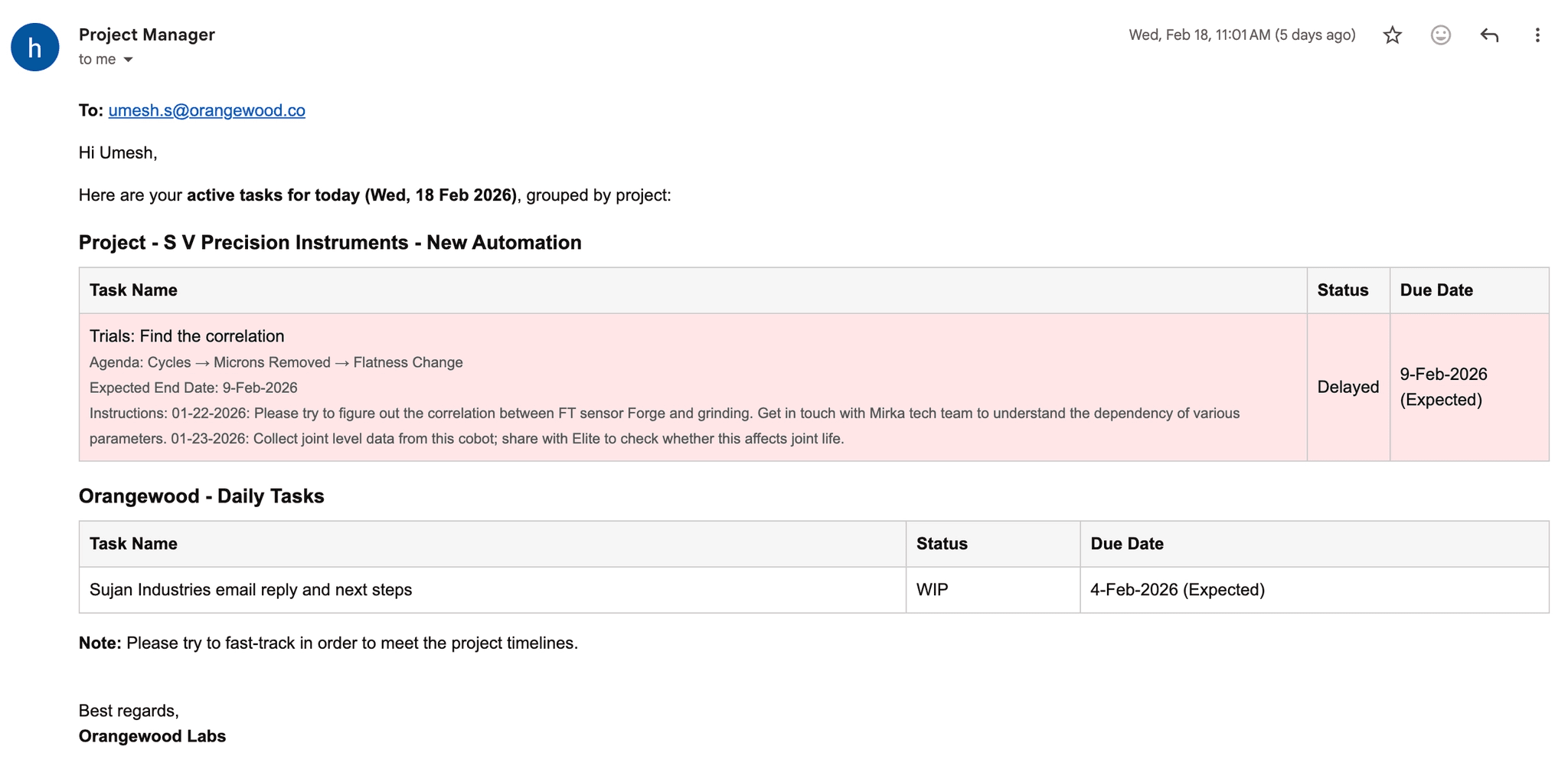
The workflow is simple, it uses the sheet from the Tasks View document that was created in the previous workflow.

As, each sheet in that document has tasks for each employee already defined, I use this directly to send emails to each employee everyday in the morning.
Daily Updates Workflow
Now the tasks are assigned to each employee at the morning. We also need a way to get updates on these tasks.
For this I have this workflow. In nutshell, this workflow sends a email to each team member with a small n8n form that asks them about the status of each task that was assigned to them.
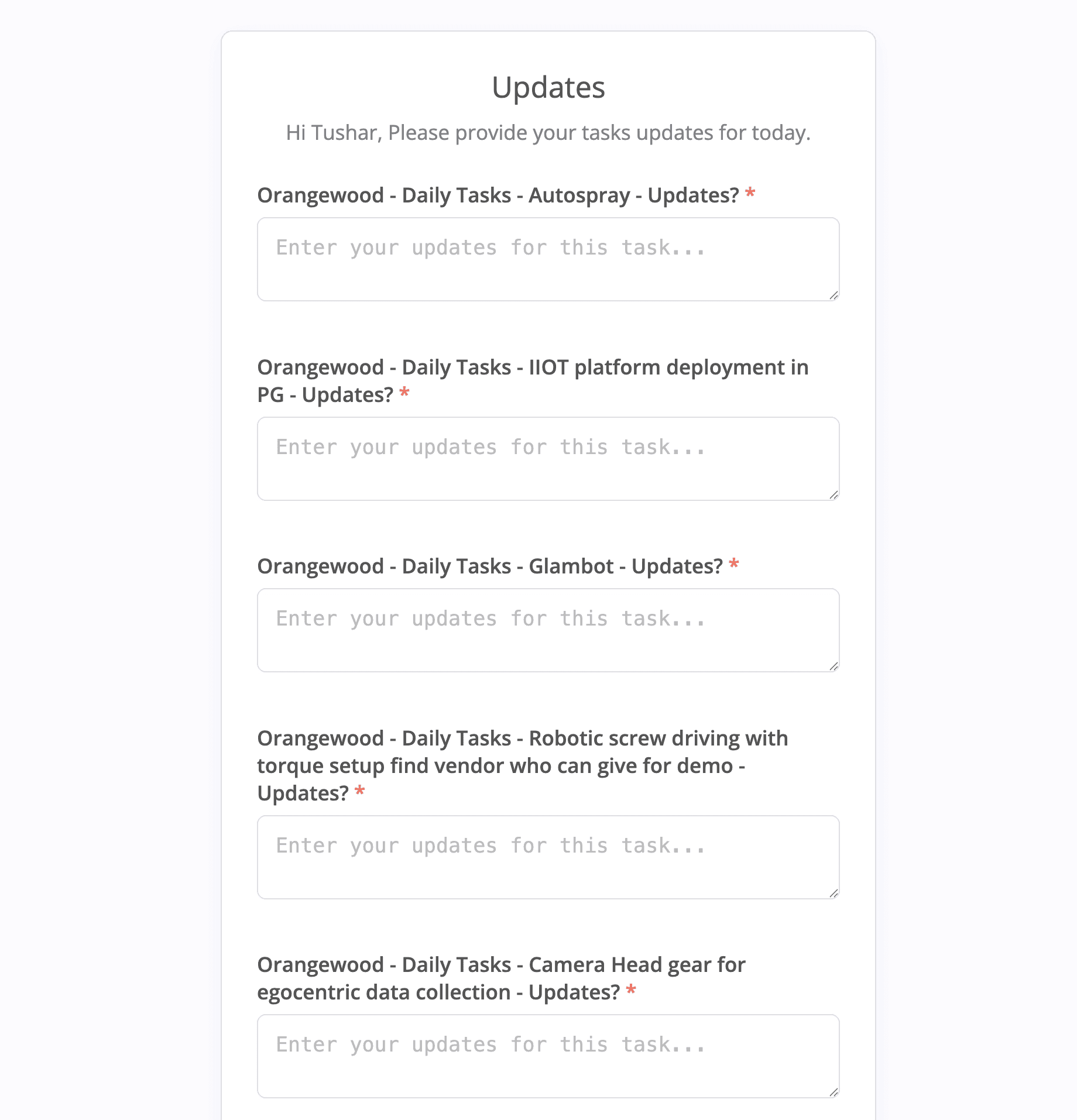
These responses are then given to a AI agent that scores each of them based on a set of criteria given by the manager and then sends a email to the employee if the updates are not good or if they are lacking.
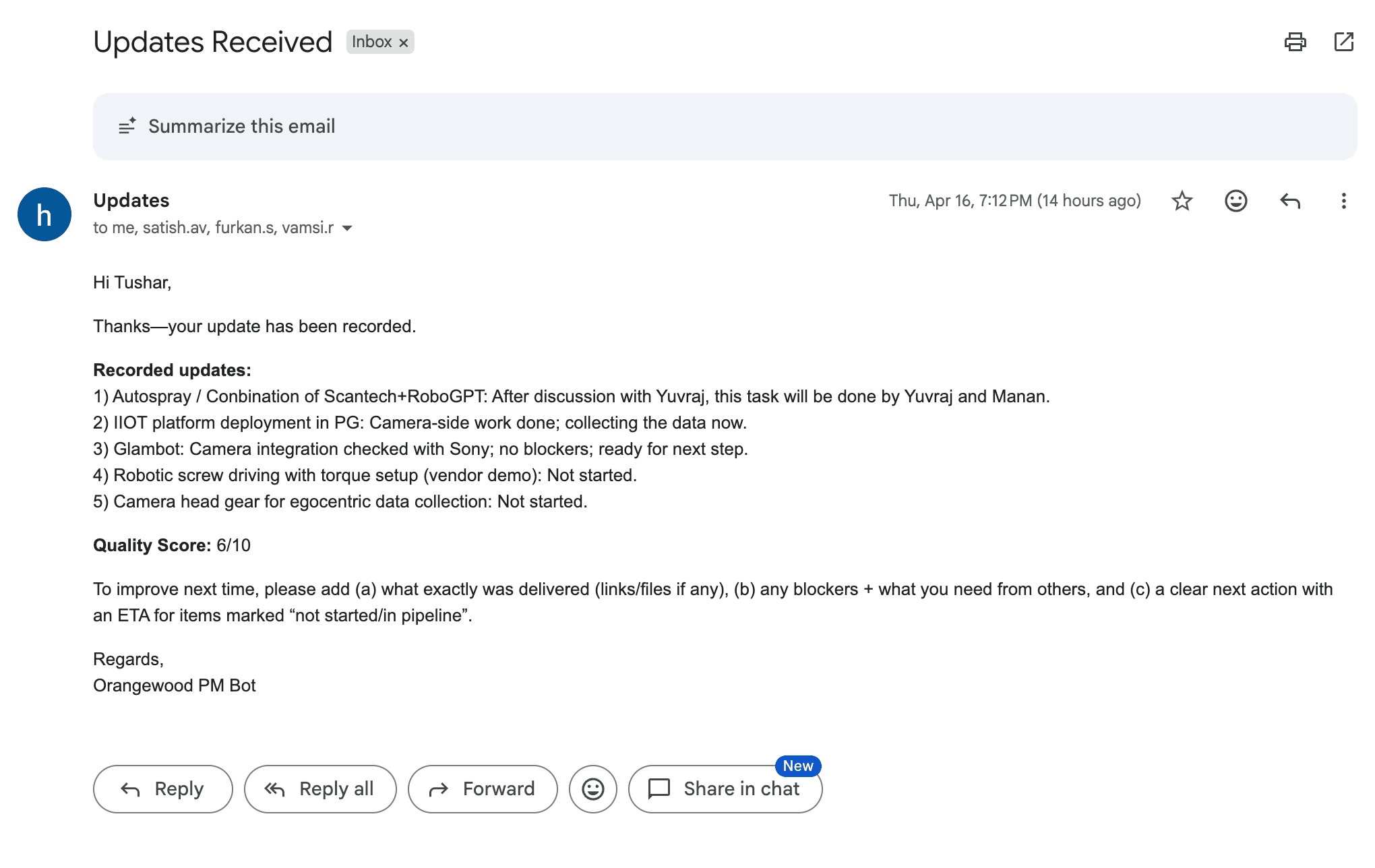
All the responses are saved in a new column on the Tasks View document as a record.
My manager has been using this automation for the last 2 months, where there have been many tweaks and modifications, its safe to assume that this automation has worked for him.
The power of n8n is that It allows you to build custom solutions for your use cases very easily and quickly. The integrations it provides are very useful specially for the people that don’t want to code.
I have been using n8n for a year and the more I use it, the more I see it’s power. There are lots of tools like n8n released daily, but what they lack is the powerful set of integrations that n8n comes with. It has first party support for so many software and services.
Also, n8n community support is so good. I myself had a problem with a specific node when I was building the workflow and I hit a roadblock, so I reached out to the n8n forums and I was surprised to see the support I got.