
Containers are probably simpler than you think they are. Before I took a deep dive into what they are, I was very intimidated by the concept of what containers were. I thought they were for one super-versed in Linux and sysadmin type activities. In reality, the core of what containers are is just a few features of the Linux kernel duct-taped together.
Actually there's no single concept of a "container": it's just using a few features of Linux together to achieve isolation. That's it. If you look at the source code of the Linux kernel, you won’t find a single object called a "container."
The History
Bare Metal
Historically, if you ever wanted to run a web server, you either needed to set your own server or rent a server somewhere. We call this “bare metal” because, well, your code is executing on the processor of the server with no additional layers of abstraction. This is still a good option if you’re extremely performance sensitive and have skills to manage and take care of your server.
You need to be extremely careful and skilled to manage your server. You need to be a true sysadmin to be able to do this.
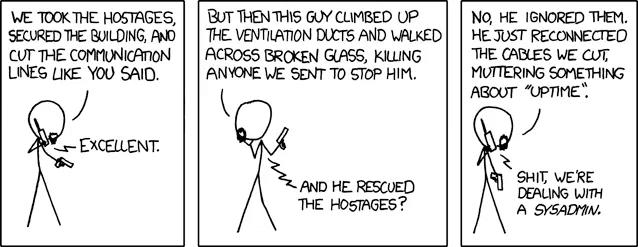
The problem with this is that you become extremely inflexible to scale.
What if you need to spin up a additional server?
Okay, you can just setup another server? Now, you have a pool of servers responding to traffic.
What about keeping the Operating system up to date? What about other software like packages and drivers? What about patching bugs? Updates?
You see the problem now!
Virtual Machines
This is the next step. This is adding a layer of abstraction between you and the bare metal. Now instead of running one instance of a operating system on your server, you will be running multiple instances of different operating systems inside a host instance. For example, I am running a Proxmox server in my homelab which hosts all my VMs.
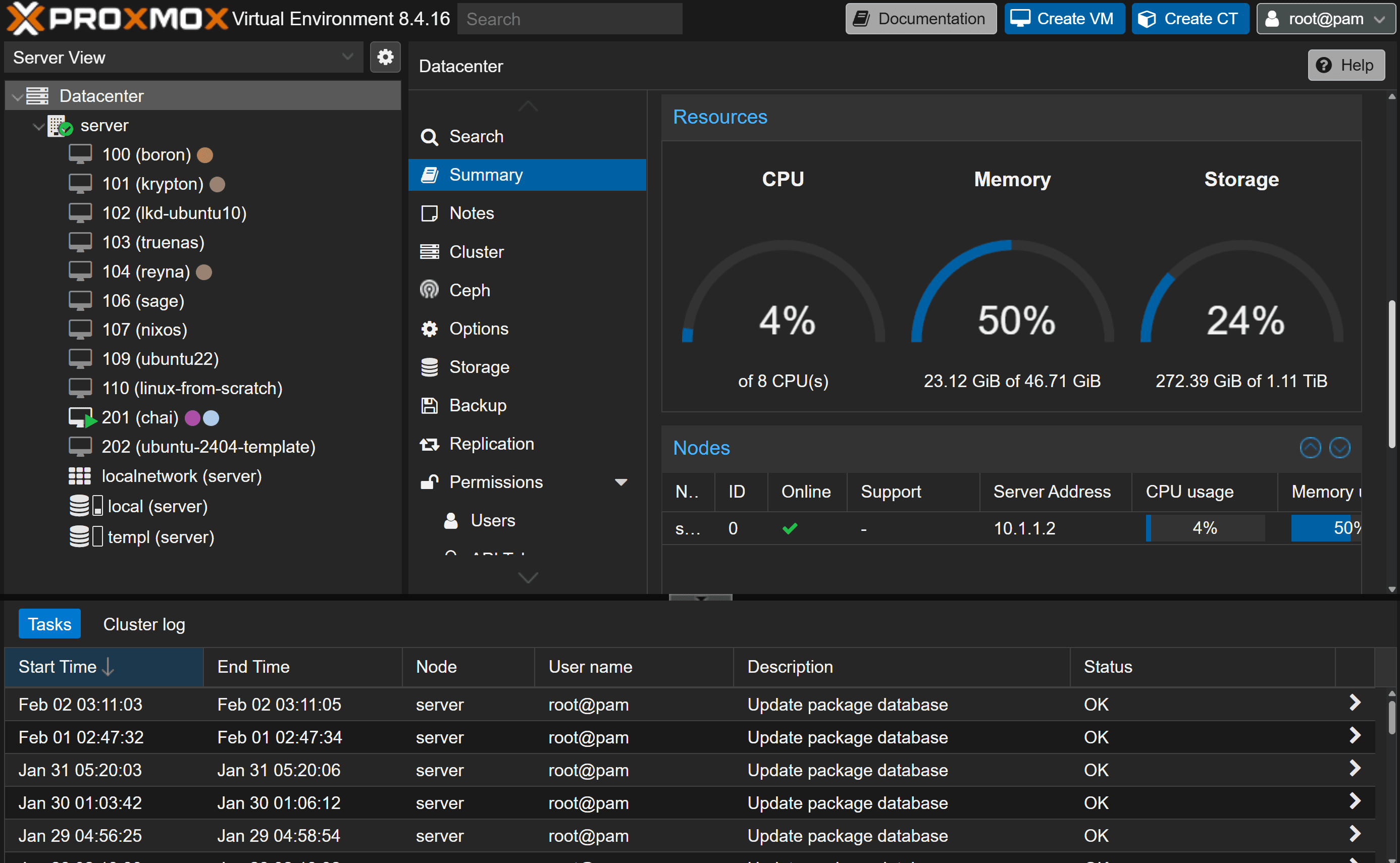
Now I can have one powerful server and have multiple VMs running inside it at will. If I am adding a new service, I can just spin up a new VM. If one service fails, it does not affect other services. There is a lot of flexibility here.
Also, there is a aspect of security here, you are only responsible for handling your own VM.
Each VM is completely isolated. Suppose, the other guy who is running a VM tries to be malicious and run a fork bomb to devour all the resources? if this were bare metal, it would have crashed the whole server, but this time only the virtual machine running the fork bomb gets affected.
All of these features comes at the cost of a bit of performance. Running a host operating system (which is often called a hypervisor) isn’t free. But this is very negligible, to the point that this does not concern anyone.
This is was the standard of hosting services on the internet. There are many public cloud providers who allow you to run VMs. You will just have to choose how much computing power you need and select a OS.
The problem with running VMs is that you will still have to manage the virtual machine, all the software, networking, updates, security, etc. You are also still paying the cost of running a whole operating system.
It would be nice if there is just a way to run code in a isolated solution inside the host OS without the added expenditure of the guest (VM) OSs.
Containers
Now enter containers, these allows you to run services in completely isolated environments directly without setting separate operating systems.
A container is a lightweight, standalone package of software that includes everything needed to run an application. It ensures that software runs the same way, regardless of where it is deployed.
When you peel back the marketing layers of "Docker" and "Kubernetes," you realize that a "container" isn't actually a real thing in the way a file or a folder is.
If you look at the source code of the Linux kernel, you won’t find a single object called a "container." Instead, what we call a container is just a regular process that has been put into a "suit of armor" (jail) using three specific Linux features:
- chroot
- namespaces
- cgroups
A container is just a lonely, restricted process.
The reason people got so excited about it wasn't because the technology was new (these features have been in Linux for a long time), but because tools like Docker made the "duct-taping" process so easy that you could do it with a single command instead of writing complex kernel-level configurations.
chroot
chroot stands for “change root”. In Linux, everything starts at the root directory. From that root, you can see everything: /bin, /etc, /home, /var, etc.
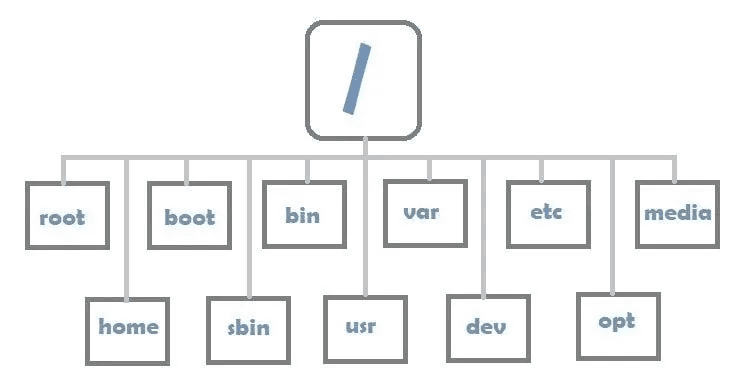
It's a Linux command that allows you to set the root directory of a new process.
Imagine you have a folder on your computer at /my_secret_box.
If you run the chroot command on a process and point it to that folder, you are telling that process:
"Everything outside of this folder no longer exists. This folder is now / "
The process can not go up one level to see the files that exist outside.
In our container use case, we can just set the root directory to be what-ever the new container’s new root directory should be and the new container’s group of processes can’t see anything outside of it.
Let’s try it.
We will be doing this in a Ubuntu machine. However you can do this in any linux distribution of your choice (yes arch works). For me, as I am running macOS, I will be doing this in a docker container (ahh, yes the irony). I will be running a docker container:
docker run -it --name ubuntu-host --rum --previleged ubuntu:jammy
This will download the official Ubuntu container from Docker Hub and grab the version which is tagged with “jammy” tag.
docker run means we are running some commands inside the container and -it means interactive shell, so that we could use it like a normal terminal.
If you are using Windows you can skip this step and directly use Ubuntu inside WSL (Windows Subsystem for Linux).
Let’s check the version of Ubuntu we are using:
cat /etc/issue
Okay, everything is perfect.
Now lets try to use chroot now.
- Make a new folder in the root directory using
mkdir /tushar-new-root, this is going to be our new root. - Inside that folder let’s create a text file with some secret, run
echo "orangewood makes robotics fun" >> /tushar-new-root/secret.txt. - Now lets try to run
chroot /tushar-new-root bashand see what happens.
You will see something about failing to find bash.
This is actually a expected behavior. bash is a program and our new root does not have any bash binary to run, remember it can’t reach outside of its new root!
Let’s fix this, run:
mkdir /tushar-new-root/bincp /bin/bash /bin/ls /tushar-new-root/bin/chroot /tushar-new-root bash
It will still fail because these binary requires libraries to run them and we didn’t have these libraries in our new root.
Let’s do that too.
Run ldd /bin/bash This will print something like this:
ldd /bin/bash


linux-vdso.so.1 (0x0000ffffbe221000)


libtinfo.so.6 => /lib/aarch64-linux-gnu/libtinfo.so.6 (0x0000ffffbe020000)


libc.so.6 => /lib/aarch64-linux-gnu/libc.so.6 (0x0000ffffbde70000)


/lib/ld-linux-aarch64.so.1 (0x0000ffffbe1e8000)
These are the libraries we need for bash. Let’s go ahead and copy these into our new root.
- mkdir
/tushar-new-root/lib - Then we copy each of the libraries one by one.
cp /lib/aarch64-linux-gnu/libtinfo.so.6 /lib/aarch64-linux-gnu/libc.so.6 /lib/ld-linux-aarch64.so.1 /tushar-new-root/lib
- Let’s do it again for ls. Run
ldd /bin/ls - Follow the same process and copy the libraries required for ls into our new root.
cp /lib/aarch64-linux-gnu/libselinux.so.1 /lib/aarch64-linux-gnu/libc.so.6 /lib/ld-linux-aarch64.so.1 /lib/aarch64-linux-gnu/libpcre2-8.so.0 /tushar-new-root/lib
Now, finally, run chroot /my-new-root bash and run ls.
You will see everything inside the directory.
Now, let’s run pwd to see the working directory. You should see /
You can’t get out of here!
namespaces
While chroot is very simple to understand, namespaces and cgroups are a bit more difficult to grasp.
The problem with chroot
chroot only protects our file system.
- chroot in a terminal.
- In another terminal run
docker exec -it ubuntu-host bash. This will get another terminal session #2 for us. - Run
tail -f /my-new-root/secret.txt &in #2. This will start an infinitely running process in the background. - Run
psto see the process list in #2 and see thetailprocess running. Copy the PID (process ID) for the tail process. - In #1, the chroot'd shell, run
kill <PID you just copied>. This will kill the tail process from inside thechroot'denvironment. This is a problem because that means chroot isn't enough to isolate someone. We need more barriers. This is just one problem, processes, but it's illustrative that we need more isolation beyond just the file system.
namespaces enters the picture
Now, let’s create a chroot’d environment that’s also isolated using namespaces. We will be using unshare command here.
unshare creates a new isolated namespace from its parent.
## Install debootstrap
apt-get update -y
apt-get install debootstrap -y debootstrap --variant=minbase jammy /better-root


# head into the new namespace'd, chroot'd environment
unshare --mount --uts --ipc --net --pid --fork --user --map-root-user chroot /better-root bash
# this also chroot's for us


mount -t proc none /proc # process namespace
mount -t sysfs none /sys # filesystem
mount -t tmpfs none /tmp # filesystem
This will create a new isolated system with its own PIDs, mounts and network stack. Now we can’t see any of the processes outside of this root.
Let’s try the previous exercise again:
- Run
tail -f /my-new-root/secret.txt &from #2 - Run
psfrom #1, grab pid fortail - Run
kill <pid for tail>, see that it doesn't work
We used namespaces to protect our processes!
cgroups
Well now we have hidden the processes from each environments. We’re all good right?
Not quite. But we are almost there.
Suppose, it’s Prime Day sale and Rohit and Manan are ready for it. Everything is supposed to go and at 9:00AM their site suddenly goes down.
What happened?
They log into their chroot’d, unshare’d shell on your server and see that the CPU is stuck at 100% and there’s no more memory available to allocate.
What happened?
One explanation is that Rohit’s site was running on a container and he simply logged into that environment and run a malicious script that ate up all resources. Now, Manan’s site goes down increasing Rohit’s sales.
We have a problem.
Every isolated environment has access to all physical resources of the server. There's no isolation of physical components from these environments.
Enter cgroups, or control groups.
Google saw this same problem when building their own infrastructure and wanted to protect runaway processes from taking down entire servers and made this idea of cgroups, so you can say "this isolated environment only gets so much CPU, so much memory, etc. and once it's out of those it's out-of-luck, it won't get any more.”
This is a bit more difficult to accomplish but let's go ahead and give it a shot.
cgroups, as we have said, allow you to move processes and their children into groups which then allow you to limit various aspects of them. Imagine you're running a single physical server for Google with both Maps and Gmail having virtual servers on it. If Maps ships an infinite loop bug and it pins the CPU usage of the server to 100%, you only want Maps to go down and not Gmail just because it happens to be collocated with Maps. Let's see how to do that.
You interact with cgroups by a pseudo-file system. Honestly, the whole interface feels weird to me but that is what it is! Inside your #2 terminal (the non-unshared one) run cd /sys/fs/cgroup and then run ls. You'll see a bunch of "files" that look like cpu.max, cgroup.procs, and memory.high. Each one of these represents a setting that you can play with with regard to the cgroup. In this case, we are looking at the root cgroup: all cgroups will be children of this root cgroup. The way you make your own cgroup is by creating a folder inside of the cgroup.
# creates the cgroup
mkdir /sys/fs/cgroup/sandbox


# look at all the files created automatically
ls /sys/fs/cgroup/sandbox
We now have a sandbox cgroup, which is a child of the root cgroup and can put limits on it!
 # Find your isolated bash PID, it's the bash one immediately after the unshare
ps aux


 # should see the process in the root cgroup
cat /sys/fs/cgroup/cgroup.procs


 # puts the unshared env into the cgroup called sandbox
echo  > /sys/fs/cgroup/sandbox/cgroup.procs


 # should see the process in the sandbox cgroup
cat /sys/fs/cgroup/sandbox/cgroup.procs


 # should see the process no longer in the root cgroup - processes belong to exactly 1 cgroup
cat /sys/fs/cgroup/cgroup.proc
We now have moved our unshared bash process into a cgroup. We haven't placed any limits on it yet but it's there, ready to be managed.
# should see all the available controllers
cat /sys/fs/cgroup/cgroup.controllers


# there's no controllers
cat /sys/fs/cgroup/sandbox/cgroup.controllers


# there's no controllers enabled its children
cat /sys/fs/cgroup/cgroup.subtree_control
You have to enable controllers for the children and none of them are enabled at the moment. You can see the root cgroup has them all enabled, but hasn't enabled them in its subtree_control so thus none are available in sandbox's controllers.
Easy, right? We just add them to subtree_control, right? Yes, but one problem: you can't add new subtree_control configs while the cgroup itself has processes in it. So we're going to create another cgroup, add the rest of the processes to that one, and then enable the subtree_control configs for the root cgroup.
# make new cgroup for the rest of the processes, you can't modify cgroups that have processes and by default Docker doesn't include any subtree_controllers
mkdir /sys/fs/cgroup/other-procs


 # see all the processes you need to move, rerun each time after you add as it may move multiple processes at once due to some being parent / child
cat /sys/fs/cgroup/cgroup.procs


 # you have to do this one at a time for each process
echo  > /sys/fs/cgroup/other-procs/cgroup.procs


 # verify all the processes have been moved
cat /sys/fs/cgroup/cgroup.procs


 # add the controllers
echo "+cpuset +cpu +io +memory +hugetlb +pids +rdma" > /sys/fs/cgroup/cgroup.subtree_control


 # notice how few files there are
ls /sys/fs/cgroup/sandbox


 # all the controllers now available
cat /sys/fs/cgroup/sandbox/cgroup.controllers


 # notice how many more files there are now
ls /sys/fs/cgroup/sandbox
We did it! We went ahead and added all the possible controllers, but normally you should add just the ones you need. If you want to learn more about what each of them does, the kernel docs are quite readable↗.
Let’s now open a third terminal. We will use this to monitor resource usage using htop
Run docker exec -it docker-host bash
# a cool visual representation of CPU and RAM being used
apt-get install htop


# from #3 so we can watch what's happening
htop


# run this from #1 terminal and watch it in htop to see it consume about a gig of RAM and 100% of CPU core
yes | tr \\\\n x | head -c 1048576000 | grep n


# from #2, (you can get the PID from htop) to stop the CPU from being pegged and memory from being consumed
kill -9 <PID of yes>


# should see max, so the memory is unlimited
cat /sys/fs/cgroup/sandbox/memory.max


# set the limit to 80MB of RAM (the number is 80MB in bytes)
echo 83886080 > /sys/fs/cgroup/sandbox/memory.max


# from inside #1, see it limit the RAM taken up; because the RAM is limited, the CPU usage is limited
yes | tr \\\\n x | head -c 1048576000 | grep n
We just made it so our unshared environment only has access to 80MB of RAM, so despite a script being run to literally just consume RAM, it was limited to only consuming 80MB of it.
We did it!
And now we can call this a container. You have handcrafted a container. A container is literally nothing more than what we did together. There are other sorts of technologies that will accompany containers, like runtimes and daeomons, but the containers themselves are just a combination of chroot, namespaces, and cgroups! Using these features together, we allow Bob, Alice, and Eve to run whatever code they want and the only people they can mess with is themselves.
So while this is a container at its most basic sense, we haven't broached more advance topics like networking, deploying, bundling, or anything else that something like Docker takes care of for us. But now you know at its most base level what a container is, what it does, and how you could do this yourself, but you'll be grateful that Docker does it for you.